

Appinions – Security

Appinions banner

A great app will keep you glued to your device. Whether it’s lifestyle, social media, utility, gaming, productivity or news; apps are an essential part of student life.
Each month we challenge our Student Digital Champions to delve into a new category, delivering fresh perspectives and making proclamations for essential applications. Which features are dumb? What should be at the tip of your thumb?

Written by Leah Parker, Georgie Pitts: Student Digital Champions.

Leah Parker Picture of Georgie

July 2022: Security

Cyber security could be viewed as being an overly complicated topic, and understanding where to start can be daunting. Yet all you really need to know to protect your device, is there are three essential types of app every student should be using: A password manager, Find my phone and Multi-factor authentication (MFA). Our Student Digital Champions are on hand to help you choose which app is right for you.

Insecure passwords can expose your personal details to fraud. Even your University of Bristol password needs to be secure. Authenticator apps provide an additional factor for security above passwords, so even if your secure password gets compromised this will provide a safety net. Staff already use MFA and this will be turned on for all students at the start of the upcoming academic year.

Microsoft Authenticator

Microsoft authenticator app icon

Microsoft Authenticator provides an easy, secure sign-ins for all your online accounts using multi-factor authentication, password-less, or password autofill. You also have additional account management options for your Microsoft personal, work or school accounts.

The multi factor authentication (MFA) feature provides a second layer of security. When enabled, during login after entering your password, you’ll be asked for an additional way to prove it’s really you. Either approve the push notification sent to the Microsoft Authenticator app, or enter the one-time password (OTP) generated by the app. The OTP codes are time-based, so are only valid for 30 seconds. The timer aspect means the same one-time password is never used twice. You can also add multiple accounts to your app, including non-Microsoft accounts like Facebook, Amazon, Google etc.

Microsoft Authenticator supports cert-based. This means the app will let your work or school organization know that the sign-in request is coming from a trusted device and help you to securely access additional Microsoft apps and services without needing to log into each time.

Pros

  • Straightforward, quick and easy set-up process.
  • Scan add both Microsoft and non-Microsoft accounts.
  • Allows cloud back-up, unlike Google Authenticator, which is useful if you lose access to your device and still need access to your accounts.
  • Recognises trusted devices and browsers, minimising the amount of log-in attempts requiring MFA.

Cons

  • No way to organise codes into folders or tags.

This is my personal favourite MFA app. I believe it provides multitudes of features that allow users to authenticate in many different ways and allows for more than just two steps in verifying your identity—providing for an even more secure experience. This is extremely important to me as with my school and work accounts I am looking for that extra security. I think as an iPhone user I like the ability as well to lock the app with touch ID, face ID or my passcode, for an extra layer of security. I also like how the app recognises when you’re accessing your account from a new or trusted device and, as such, adjusting the amount of MFA required. Overall, I think it’s a great app, easy to use and I’ve never had any problems with it and would definitely recommend it to those wanting extra security on their school, work and personal accounts.

Reviewer: Leah Parker

Download links:

Google play iconapp store link

Norton Password Manager 

App icon for Norton password managerThis is a password manager app, designed to store your passwords in a secure location. You can sign in with Apple or Google, or create a new account (I chose to create a new account using my University of Bristol email). The main area of the app is called the “Vault”, which is where your passwords are stored, and you can even choose to store credit cards or bank account details here too.

Saving a new password is simple. You click “Logins”, and the “+” sign in the bottom right corner. You can name the website, paste the URL and add the password. You can also add a note to accompany it and choose whether to sign in automatically next time you need to log into that account. It autofills the email as the same one you use for the Norton app, but you can change this if different websites use different email addresses.

Some other functions include:

  • Password Generator to provide you with more secure passwords
  • Secure Browser to protect you against online threats
  • Auto-fill, which automatically types passwords for you
  • Ability to save different addresses (home address, work etc), if a website requires you to enter an address

Pros

  • Many other password manager apps I looked at required a monthly subscription, but this one is free
  • Can search passwords by keywords, making it easy to locate the ones you need
  • Has a “notes” section, so you can add any notes you might need in regard to passwords
  • Offers a Tutorial Guide
  • Able to ‘favourite’ certain passwords that you need quickly and often

Cons

  • Logging back in after closing the app was difficult. There are two separate logins: one for the app, and the other for the password Vault specifically.
    • I was able to log into the app fine, but I hadn’t set up a PIN or password for the Vault yet, so couldn’t enter one to log back into it.
    • After deleting the app and redownloading, after logging in on the app, I was able to activate Face ID to access the Vault.

I would probably use this password manager. I like that it was free, especially in comparison to other ones which require a monthly subscription. This is significant, I think, because Google and phones themselves already save passwords for you, so paying for an app to do the same thing (although in a more secure fashion) is not particularly necessary.

I like the layout; it is very simple and easy to navigate, and you can search your saved passwords using keywords or favourite specific ones which would be helpful if you had a lot saved.

The only issue I ran into was logging back into the Vault after creating my account and closing down the app. Having checked the reviews, it seems this has happened to others! Deleting it and activating Face ID seems to have done the trick!

Reviewer: Georgie Pitts

Download links:

app store link

Google Authenticator

App icon for google authenticatorGoogle Authenticator generated 2-Step Verification codes on your phone for your Google Account to provide an additional layer of security when signing in. With 2-Step Verification, signing into your account will require both your password and a verification code you can generate with this app. Once configured, you can get verification codes without network or cellular connection. Features of Google Authenticator, to name a few, include: automatic setup via a QR code, use across multiple accounts, time-based and counter-based code generation and transfer of accounts between devices through a generated QR code.

Pros

  •  This app does not back up to the cloud, which from a security perspective is actually what you would want from a multi-step authenticator app.
  •  Relatively simple and straightforward to set up and use.
  •  Useful if you have multiple google accounts which required another layer of security.
  •  New feature means you have ability to transfer 2FA codes when upgrading to a new phone

Cons

  •  No cloud back up means losing access unexpectedly to the phone you set the authenticator app up on means you lose access to the 2-factor authenticator codes. This could possibly lock you out of your accounts if you are unable to log back into the original phone.

Personally I quite like the Google Authenticator app, it’s a simple app to use and it fulfils its intended purpose. I have set up Google Authenticator to multiple Google accounts and never had an issues with it. I find it is an app I can truly trust. That being said, I could see how this app may cause problems if I was to lose access to my phone. No question that cloud backup is extremely convenient but there is often a trade-off between convenience and security and this is a great example of that. This app is for those who choose a bit of extra security (codes only stored on the device) over the convenience of having their codes stored both on the device and in the cloud. I would say it just depends on the person whether you prefer to use an app with no cloud back up and extra security, or cloud back up and less security such as Microsoft Authenticator.

Reviewer: Leah Parker

Download links:

app store link

Find My iPhone

App icon for Find My app

This app allows you to track your Apple devices and notes the last time at which they were used/active. It uses Apple Maps to display your device location and is compatible with: iPhone, iPad, iPod touch, Apple watch, Mac, AirPods and AirTag. It includes Lost Mode, a noise alert for nearby devices and you only need your Apple ID to log in!

This is a very useful app! My favourite feature is how detailed the map is. Rather than it being vague, you can see the exact time and location the device was last used. Another favourite feature is the Lost Mode. By locking your device, no one can access your personal information, giving you an added level of security if you were to misplace your phone. Whilst this app does allow you to track your friends and family, it is not created for that purpose, and is more targeted to keeping track of your devices.

The fact it is compatible with other apple devices is really useful, particularly AirPods! We’ve all lost our headphones, so to be able to locate them easily is very useful!

Pros

  • Free! It comes with the phone
  • Has a setting which allows your devices to make a noise to alert you to where they are
  • You can put your devices in Lost Mode, which tracks its location; protects your data and even presents a message for whoever may find your device
  • You can even track your friends’ devices and vice versa, which can be turned off if you wish

Cons

  • Only available on Apple devices so Android users cannot download this app
  • If you lose your phone, you need a secondary device to locate it (a MacBook, for example), so if you don’t have one of these, then you cannot access the app remotely

I definitely recommend this app. It comes with the iPhone, and whilst I would be tempted to delete it to save storage space, I actually recommend keeping it around and tagging all of your Apple devices in case you need it in the future!

Reviewer: Georgie Pitts

Download links:

app store link Google play icon

*App Store link above opens iCloud to sign-in with your Apple ID, because the app is inbuilt. The Google Play link opens an Android equivalent called Google Find My Device. There are other available Android apps which share this functionality.

These apps aren’t supported or managed by the University of Bristol. Don’t forget to think about what data you are adding to these apps if you decide to download and use them. Our Online Identity video highlights some of the factors you may want to think about when you are online.


Next month: Gaming

Appinions – Travel

Appinions banner

A great app will keep you glued to your device. Whether it’s lifestyle, social media, utility, gaming, productivity or news; apps are an essential part of student life.
Each month we challenge our Student Digital Champions to delve into a new category, delivering fresh perspectives and making proclamations for essential applications. Which features are dumb? What should be at the tip of your thumb?

Written by Polly Davis, Leah Parker, and Kexin Li: Student Digital Champions.

Polly Davis  Leah Parker  Kexin Li

June 2022: Travel

The travel industry has taken a battering over the last few years. Staffing cuts in aviation have led to recent flight cancellations, whilst providing proof of negative covid tests have once again been dashing plans at the last minute. However we intend to spend our well deserved time off, somebody has inevitably found a way to enhance the experience using a mobile app. But are they any good?

Step: Your world

app icon Step is a new travel app based on a public, interactive map where everyone can pin their favourite places of culture, drink, health, shopping, stay, and food. With Step, you create your own profile with your own specific tags of places where you are from and where you mostly visit- this does not limit where you can pin, the map covers the world! By simply searching a place you have visited, you can create a recommendation by pinning this on the map. Scrolling around, you will be able to see so many recommendations around you which really helps to get a feel for the culture and life of the community of the place you are in. Even more so, following your favourite Culture Creators and accounts allows you to see their own personal recommendations. This has been extremely helpful whenever I have been in London visiting friends and we are lost as to where to go- each pin is attached with pictures, the website of the business, opening hours, address, and phone number, with additional comments from users. I have found so many places around me that I would not have taken a second look at if I was using Google or even my own eyes.


Pros

  • Interactive map with the ability to comment
  • Create your own profile
  • Follow other creators
  • Can add photos
  • Can build up a following

Cons

  • Relatively new app so pins are fairly limited to popular places
  • Cannot specify what type of establishment you are looking for, such as filtering by the nationality of the food
  • Pins are not reviewed by any critics, therefore recommendations are subjective
  • Not available to download via Google Play

Reviewer: Polly Davis

Download link:

app store link

My Travel Tracker

app icon

I love travelling, and I have always been tempted to make a travel blog- but I have also always been quite intimidated by that large and scary environment. My Travel Tracker is a way to document your travels into categorised trips that are displayed on your own personal map. Each trip can be pinned with photographs and geolocations and descriptions to give an in-depth feel to your itinerary. These trips can be viewed by others as it is also a social networking app where you can take inspiration from other travellers and interact by commenting, liking posts, and sharing. Like Instagram, there is a community page where you can view recent travel posts from other creators and view their own Bucket Lists. Even more, there is a section where you can post short films of different places around the world- this is especially helpful if you are stuck on what place to travel next to, get a grasp of the environment, or to simply reminisce on your own time there. Some travellers decide to categorise their posts by the best places to eat, drink, visit or stay in an area which can be searched for in the community section if you need guidance when you are visiting an area!
This app creates a safe and friendly community full of creators with the same passions of adventure and curiosity about the world!


Pros

  • Can create a profile area with a colour map that highlights the countries you have visited
  • You are free to post in whatever format you would like, whether it be a blog, tip list or just pictures
  • Can follow other travellers and interact with their posts which will appear on your timeline

Cons

  • Not every place in the world has been posted so popular tourist locations have more posts attached with them
  • The community page is ordered in terms of popularity of a post or profile
  • All communication with other creators is public

Reviewer: Polly Davis

Download link:

app store link


Bristol Guide

Bristol guide app icon

This app provides a distinctive guide to Bristol, pointing new visitors wanting to explore the city to an exciting array of attractions, or perhaps even helping residents discover new places they were not previously aware of. This app aims to encompass a full Bristolian experience to the user.

This app allows you to locate the nearest attractions and sites around you for you to go and  visit. Or, if you prefer, you are able to look at places to visit in a specific category you are interested in. These categories include events and festivals, parks and greenspaces, pubs and bars, and restaurants and sport, to name a few. By pressing on the event you are interested in, it provides a brief overview of the site, including contact and website details if you would like to learn more, and its exact location.

Pros

  • Free
  • Simple to use
  • Range of categories containing a wide variety of sites and events, including popular and lesser known ones.

Cons

  • Some categories lack essential information – e.g. the events and festivals tab has no information on the dates and times
  • Would be nice to see some reviews of the places shown
  • Includes some pictures but would say it definitely needs more!
  • Not available to download via Google Play


Overall, I really like the idea of the app! I think it includes a wide range of sites and attractions to visit, which would be useful for not only first-time visitors, but also residents wanting to explore more of the unknown parts of the city. Through using the app, I was able to discover lots of green spaces I did not know existed just right near me which was amazing. However, I would say it’s clear this app needs an update, as there is some information lacking which would be useful, such as dates of festivals and events. I also think more pictures would really benefit the app, as it only contains a single image for each listing, which does not always truly represent the beautiful appearance of these sites. Overall, I do like the app and would definitely recommend it to those living in Bristol over the summer so they can go and explore the city.

Reviewer: Leah Parker

Download link:

app store link

Voi

Voi app icon

Voi is a new, innovative way of travelling round the city. This app provides a new mode of transport, aiming to cut down our emissions while still getting to places quickly. Voi scooters are bright red, and operate simply through twisting the handle to accelerate, and pressing down bike-like brakes at the front to stop. They are now equipped with indicators as well, which you can use to signal when you are turning left or right.

The way it works is you first download the app, and set up your Voi account on the app by scanning your driver’s license. The app then allows you to find your nearest Voi parking spot, where you can also see the number of Vois available. You simply scan the QR code on the Voi and once you’re ready you can unlock it and begin voing! When you’ve reached your destination, you then park your Voi in the closest parking spot and are asked to take a picture upon completion.

Voi offers regular users the opportunity to buy Voi passes, whether this be just for the day, or a month. There are designated parking spots, discounted parking spots, and also marked slow zones and no Voi zones. Voi scooters also stop working past a certain time and have installed a software aimed to test your reaction skills to promote safe use.


Pros

  • Passes are relatively cheap.
  • Quite fun way of getting round.
  • Especially round Bristol, quite easy to find and locate Voi parking spots.
  • The app allows you to locate Voi parking spots and places you can find Vois
  • Voi prevents you riding on the pavements, ensuring the safety of pedestrians

Cons

  • Have to find a designated parking spot to put your Voi in – If travelling to a new destination it may be difficult to determine where exactly to find these.
  • Potentially scary particularly if you are not a licenced driver, or the weather conditions are harsh.
  • The Voi may run out of battery in particularly inconvenient locations.
  • Only accessible in certain cities.


Overall, I love the idea of Voi as a way of travelling, especially in a busy city such as Bristol, where bringing your cars may not be feasible due to the lack of car park spaces, or if you’re like me and you just can’t drive! I find it particularly useful when the buses may be unreliable or I need to get somewhere quite quickly if I am running late. Yet, I will admit, I have suffered a fair few scary instances with Voi, and so I personally do not use them often unless I am on quiet, residential roads. I would definitely recommend learning your road rules before attempting to ride a Voi, and definitely practice before heading to the main roads. I think with a careful and responsible user, Vois can be quite fun and provide a cost effective way of travelling to places, and not to mention they are much more environmentally friendly than other modes of transport. I would definitely recommend using Vois opposed to a car when you can, but just as with any mode of transport, make sure you do your research before riding them and learn your road rules!

Reviewer: Leah Parker

Download link:

app store link


Google Translate

Google translate icon

One of the biggest problems you may face while travelling is probably the language barrier. Google Translate will be your best aid for basic daily communication in most countries! Google Translate is a free translation service, which provides instant translation between 133 languages, and supports the translation of words, sentences, and web pages between any two languages. The interface of the app is very concise, with only three pages: Home, Saved, and Settings. In addition to inputting text for translation, you can also directly translate the text in the photo through the camera. For tourists, the instant translation of conversations and the transcription function provide great convenience. You can record your voice directly, and Google Translate will automatically translate it into the target language and read it aloud.

Pros

  • All features are free
  • The translation speed is fast, and the communication can be translated instantly
  • Very simple and convenient to use

Cons

  • There may be translation errors leading to misunderstandings, and grammar and structure errors occur frequently
  • The choice of languages is limited. “Conversation mode” is available in 71 languages; “Transcription mode” is only available in 10 languages
  • Accents may lead to inaccurate voice input


I personally think Google Translate is the most frequently used and helpful app for travellers, and it helped me immensely when I travelled to Turkey last week. When I was communicating with my Turkish host, we used Google Translate the entire time, making our conversation smooth and pleasant. Google Translate solves all the problems related to language barriers to the greatest extent possible with simple functions, which I think is amazing. Although there may be grammatical errors due to machine translation, I think it has no impact on the communication between tourists and local people, so it is a very excellent app for me in general.

Reviewer: Kexin Li

Download link:

app store link


App in the Air

App in the air icon

If you have frequent flight needs and are easily troubled by problems such as flight information changes, App in the Air can effectively help with air-related problems to ensure you travel smoothly! The main function of App in the Air is to help you manage your hotel and flight reservation and give timely notifications and relevant information so you can optimize your travel experience. Different from other OTA (online travel agency) apps, App in the Air is more like a personal travel assistant, because you can not only book air tickets and hotels from this app, but also manually import your flight number and hotel reservation, and it will give you all relevant information and suggestions. Beyond that, it acts as a memoir by collecting statistics on all the flights you’ve ever taken and competing on the global leader board. You can also invite your friends and compete on the friend list for flight stats.

Pros

  • Convenient and easy to use. The app design is very concise and straightforward
  • Helping you record flight statistics and keeping track of your accomplishments during your trips
  • You can add your loyalty programmes to track status and bonuses
  • Providing very detailed information and tips for travellers

Cons

  • There is a fee for membership, and regular users only have a 14-day free trial
    • £9.99/year for Basic.
    • £29.49/year for Pro.
    • £44.99/lifetime
  • The functions of this app are not unique, and most of them can be replaced by other free apps
  • Users have complained about bugs in the app and incorrect flight information being provided
  • Hotel and flight information booked on other platforms require manual input


I personally think this app is more useful for regular travellers, but it is not very attractive to me as a student. It can effectively help travellers to manage all reservations and plan your trip, and its notification function can greatly help you to avoid missed flights and other problems during the trip. However, as far as I am concerned, all this travel information can be found on free platforms, and I do not need to spend extra money to obtain such information. This app can only provide flight information, but not bus or train related information, so the frequency of use for me is very low. Also, all the hotel and flight information I booked from other platforms have to be entered manually rather than displayed automatically, which makes the function of recording travel statistics a little troublesome.

Reviewer: Kexin Li

Download link:

app store link

These apps aren’t supported or managed by the University of Bristol. Don’t forget to think about what data you are adding to these apps if you decide to download and use them. Our Online Identity video highlights some of the factors you may want to think about when you are online.

Next month: Security

Ways I make online learning work for me

Written by Helena Thornton, Student Digital Champion

Helena Thornton

When I started university, we were in the murky depths of the pandemic. It wasn’t the transition anyone had envisaged! Alongside the expected changes: moving away from home, living in halls in a new city etc, came the less anticipated move to (almost) complete online learning. I was used to an all-in-person sixth-form approach, so this was a lot to get used to.

For better or for worse, much of my teaching has remained online this year, and so alongside the significant focus on independent learning at Uni (also online!), I have had plenty of time to get used to online learning since I began University in 2020. My learning styles and strategies are still far from perfect, but I have spent time and effort finding ways to make online learning work for me. I thought it would be helpful to share some of these; they might be things you could try, or might give you an idea of how to customise your own learning to suit your individual needs and preferences.

Planning!

University is full of juggling commitments, different assignments, lectures, social plans, general life activities, etc. I find it impossible to keep it all stored in my head: if I’m going to do it, it needs to be written down.

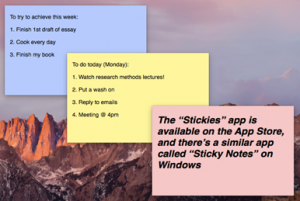
As a result, I find making to-do lists really helpful. I choose to do these on my computer, so that they are right there when I log on for the day. I have an Apple laptop, and use an app called ‘Stickies’, which lets me make coloured sticky notes to display on my desktop. They look great, and – even better – are completely unavoidable when I’m on my computer!

For PCs, there is a similar application called Sticky Notes.

To do lists on my desktop

Mind Maps

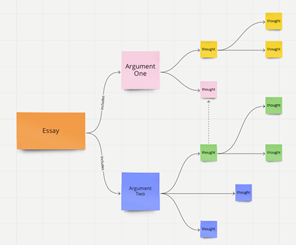
I have tried a number of different ways to organise my thoughts and notes when preparing an essay or other assignment, and I have found mind maps the ideal tool to help me capture different trains of thought, or different elements of a project. They are also a great way to visualise information – much more user-friendly than a block of text!

Like to-do lists, mind maps can be made by hand, but I have found websites and software that make them so much easier to create and share. When done digitally, they are also a lot more visually appealing, and you can move things around and add/delete as much as you would like.

Mindmap made on Miro Mindmap made on MindView

I currently use paid-for software called Mindview* to create mind maps, however, there are a lot of free alternatives online. One that I particularly like is Miro, a free website with mind mapping and brainstorm templates you can use individually, or collaboratively with a team.

Keeping it varied

They say that a change is as good as a break. Why not use both?! When I started my degree online, I quickly found that I was spending endless hours stuck in my room hunched over my computer, and it began to feel very monotonous and unengaging. Don’t let yourself get stuck in that trap post-pandemic! If online and independent learning still make up a large part of your timetable, take it upon yourself to find ways to keep your learning varied, and keep yourself engaged.

One way I do this is by moving around between chunks of time spent studying. Sometimes I take my work from one study space to another, or between a café and the library. This way, I am less likely to zone out and lose productivity, having sat at the same desk for hours on end. If I don’t feel like moving my workspace, I take the time to go on a short walk in a break from studying, so that I can get a smaller change of scene. This doesn’t work for everyone, but for me, the shift in environment keeps me on my toes.

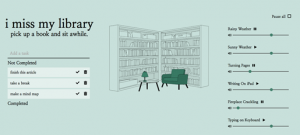
I miss my library image
Taken from imissmylibrary.com

If you aren’t able to move around during the working day, but still want to capture that change-in-environment effect, you could try using different online study-environment websites. These can offer soundtracks/pictures that simulate the different study spaces I mentioned. Some of my favourites are ‘I Miss my Café’ and ‘I Miss my Library’, which create adjustable background noises to study to. The library option also includes a built-in to-do-list tool to help you keep productive.

It’s important to remember that just because these work for me, doesn’t mean they are right for everybody. Everyone has their own preferred ways of working, and so will have a different experience with any tool or type of study. However, finding a few study techniques you can go back to time and time again can be a really helpful way of making your study habits more personalised, productive and enjoyable. I have also listed below a few other resources I have found useful – I hope you find some that work well for you, too!

Other helpful digital tools for university work:

Connected Papers: for researching papers and assignments

Canva: for creating posters & graphics

Liner: for highlighting online webpages

Cold Turkey: for blocking other online distractions when working

Purdue OWL: contains so much referencing information!!


*Mindview: this is a paid-for software, however is available to all students on University computers. If you make use of these to study, I would recommend giving Mindview a try! Otherwise, Miro is a great – free – alternative.

Digital tools for a greener you!

Written by Souwoon Cho, Digital Education Developer.

The 22nd of April is Earth Day  DigiTalk are expanding our focus from the learning environment to the wider environment that we live. While concern for the environment, also known as Eco-anxiety continues to grow, it can be hard to know what positive action we can realistically take.

Climate change

Here are some digital tools to help you make your day-to-day life more sustainable.

Looking upwards at trees

Be aware of your carbon footprint

The first step to making positive change is to have an awareness of your current situation. Take WWF’s carbon footprint calculator for a quick and user-friendly assessment of your current impact on the environment. It also gives you a breakdown of your results and tips to reduce your impact.

A laptop next to a glass with a leaf in it

Plant trees while you search the web

You are likely to have heard or said the phrase “Just Google it”, which reflects the dominance of one search engine in everyday use. But have you tried Ecosia?

Visually, Ecosia looks just like what you would expect from a search engine. But in the background, every time you search, at least 80% of the profits generated from advertisements are donated to non-profit tree planting organisations around the world. The University of Glasgow made Ecosia their default search engine on campus in 2020, and the University of Bristol switched theirs to Ecosia in 2021. So, with an estimated 45 searches need to plant one tree, are you prepared to make the switch?

Man sitting on money

Engage in the circular economy

Food waste and fast fashion impact the wider environment but also make a dent in your pocket! Apps such as OLIO, Good to Go and Freegle help you connect with businesses and others in your community to minimise the amount of food, clothes and furniture going into landfill. It’s also a great way to grab your next meal or some furniture for your student accommodation at a reduced price or even for free!

So, what do you think you will try?  Do you have any other digital tools to suggest?
Let us know in the comments below.

Further resources:

Digital Skills and Employability: Where to Start

Written by Amy Preston, Student Digital Champion

Amy Preston

Why are digital skills important in the workplace? 

Now that we are emerging from a 2-year pandemic, many companies are moving back towards hybrid or in-person working. However, you’d still be hard pushed to find a job description that doesn’t have digital skills on their list of requirements. Even non-technical and non-office-based jobs require some degree of digital literacy. Recent surveys exhibited on the government website have shown that essential digital skills (things like communicating, handling information and online safety) are required across low, medium and high-skilled occupations. And competency in Microsoft Office is generally required for entry into medium and high-skilled jobs (which graduates typically join). However, it’s not just basic digital skills students need to be thinking about – different jobs require different specialist technological skills, which future employees need to think about when trying to boost their CV. For example, specific requirements for a job as a patent attorney will be notably different to one in marketing – one may require knowledge of online safety and privacy, whereas the other will emphasize creativity.  

What are the JISC digital capabilities and JISC discovery? 

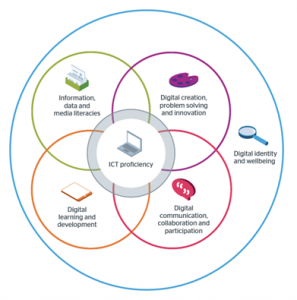
Because digital skills and employability go hand-in-hand, you may want to look at JISC’s six elements of digital capabilities below. These are the key digital skills looked for by employers, and very important for students (future employees!) to be aware of. Or, take a look at the reimagined JISC framework in the form of the Digital Capabilities Tree by the Student Digital Champions and DEO (Digital Education Office). A good way to find areas that you need to focus on is the JISC discovery tool, which provides a questionnaire on your digital capabilities. This will generate a report and give you ways to improve, with links to useful resources. It’s great for assessing how you can improve your digital capabilities as a student, and as it applies to jobs too, implementing these techniques now is how you will stand out as a digitally skilled candidate to employers! 

Jisc digital capabilties
Image showing JISC digital skills: information, data and media literacies, digital creation, problem solving and innovation, digital identity and wellbeing, digital communication, collaboration and participation, ICT proficiency, and digital learning and development.

How can I make my digital skills stand out when applying for jobs? 

If you know you are interested in certain jobs after you graduate, scope out adverts for them on LinkedIn, Indeed or other job listing websites to see whether they list any specific digital skill requirements for their jobs. As mentioned above, you will often see they ask for proficiency in Microsoft Office. Find how you can showcase your proficiency – for example, you may have taken the ICDL (or ECDL) exam in school, which is highly regarded by employers looking for Microsoft Office proficiency. But more importantly, consider what specific digital skills you have that match the job requirements and how you can gain skills that you don’t already have. For example, if a job wants some coding experience, there are plenty of resources available to help you. ‘Learn Python the Hard Way’ is a great free resource to use as an introduction to Python coding. Use your digital skills to do some digging and find online resources to help you gain specific expertise that will make you stand out! 

Finally, be aware of your online identity when applying to jobs. The first ‘Digitally Skilled’ video talks about what online identity is and how you can shape it. Have a look and see if there are ways that you can adjust it to improve your employability – this is an important skill in itself! 

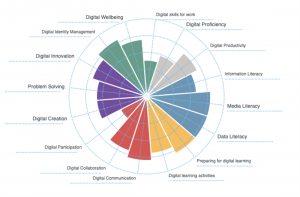
Jisc discovery tool
Image showing an example of a JISC Discovery (circular bar plot) digital capability report.

Further resources

If you need further help with job applications, head to the Careers Service website for information on employability and bookable workshops such as CV writing and interview skills. Also look at the DEO’s resources and other DigiTalk blog posts for all things digital! Finally, best of luck in securing a job with your new and improved digital skills! 

Disability Services – Technology for Learning online workshop

Technology is being built into our day to day IT programmes to enhance our working and studying practices. Technology can help to ease and overcome challenges, it can also enable us to complete tasks quicker and with more precision.

Technology for learning – is a workshop designed to guide you through technology freely available to support you with time management and organization, reading text and note taking.

Image of an online meeting
Photo by Chris Montgomery on Unsplash

This workshop is on Tuesday April 5th 2pm – 3pm, and will be held online.

If you would like to attend you can sign up here: Technology for Learning workshop

If you would like to attend but cannot make this date then please send an email expressing your interest to: gemma.russell@bristol.ac.uk
You can find out about more of the Disability Service’s workshops on their website.

Meet our new Student Digital Champions

We are excited to announce that the DEO have recruited a new group of Student Digital Champions to work with the team for the next few months to help us improve students’ digital experience whilst at University. You can find out more about them here. If you’re a student and want to get in touch with them, get in contact with your Course Rep who will be able to put you in touch.

Helena Thornton

2nd Year, studying Psychology. Helena has worked with the DEO since July 2021.

Helena Thornton

Tell us something about yourself (interesting or not!)

I have lived in 6 different countries 🙂

What is your favourite keyboard shortcut?

This is such a DEO question ahahaha… It has to be ‘command-t’ (‘ctrl-t’ for PC-users) to add a tab on my web browser – I always have so many tabs open!!

What’s your favourite emoji to use in online sessions?

The laughing face! I laugh a lot in real life, so it’s very appropriate 😂

Is there a University acronym or term you’ve still never worked out what it means?

I’m not sure, my mind has now gone blank to all University acronyms and terms.

Can you remember your first online lecture? What was it like?

I can! My very first university lecture was online, and I remember it feeling so strange… The chat box was hectic, but it also felt quite isolating. It took a while to get online learning to work for me, which is a reason I’m now passionate about finding ways to make digital learning and skills-acquisition more user-friendly for others.

Sophie Shanahan

4th Year, studying German

Sophie Shanahan

Tell us something about yourself (interesting or not!)

I worked as a journalist in Berlin for my year abroad last year (and very much miss it!)

What is your favourite keyboard shortcut?

A very boring but useful one is Ctrl + Shift + V to paste without formatting – comes in very useful when writing essays/referencing.

What’s your favourite emoji to use in online sessions?

The shocked face – Surprised

Is there a University acronym or term you’ve still never worked out what it means?

I think I’ve managed to decipher them all by now.

Can you remember your first online lecture? What was it like?

I remember there being a ridiculous number of references to ‘unprecedented times’ and lots of people either not muting or unmuting themselves!

Bobby Joynes

1st Year, studying Film and Theatre Studies

Bobby Joynes

Tell us something about yourself (interesting or not!)

I love taking photographs of pretty much anything I see and creating really weird and wacky digital collages!

What is your favourite keyboard shortcut?

Comand + S, ‘ctrl-s’ for PC-users, (the amount of times I’ve accidentally deleted work without saving it! This shortcut has bee an ABSOLUTE lifesaver at saving work on the go)

What’s your favourite emoji to use in online sessions?

Thumbs up! Yes

Is there a University acronym or term you’ve still never worked out what it means?

I still mix up the definitions of Formative and Summative work, even after completing loads of essays and work!

Can you remember your first online lecture? What was it like?

My first online lecture was from Theatre and it was pretty chaotic! The lecturer wasn’t completely familiar with using Zoom and everything went a bit topsy turvy halfway through. Luckily, we were still able to get all of the notes from it in the form of a handout afterwards but organised chaos is the best way I would describe it. Everyone got a bit confused with what was happening but we were all able to learn from it and it got much better in the lectures that followed!

Amy Preston

4th Year, MRes Physiology and Pharmacology

Amy Preston

Tell us something about yourself (interesting or not!)

I also do dance and climbing (although very much a beginner!)

What is your favourite keyboard shortcut?

Ctrl+F

What’s your favourite emoji to use in online sessions?

👍 – usually to let people know I can hear them!

Is there a University acronym or term you’ve still never worked out what it means?

When I first got to Uni I couldn’t work out why everyone was going to ASS!

Can you remember your first online lecture? What was it like?

Not very smooth – most people had internet issues as they were at their family homes or in student housing!

Polly Davis

2nd Year, studying Environmental Geoscience

Polly Davis

Tell us something about yourself (interesting or not!)

I am a Louis Theroux enthusiast- I would love to be apart of the documentary and film industry, travelling and working behind the scenes.

What is your favourite keyboard shortcut?

Control-command-4, I am always cropping and taking pictures of lecture slides on my computer screen!

What’s your favourite emoji to use in online sessions?

👍 A thumbs up- pretty simple and effective, says a lot without saying much.

Is there a University acronym or term you’ve still never worked out what it means?

No, I struggle reading jargon so I always have to find out what it means before it gets too late.

Can you remember your first online lecture? What was it like?

I remember it being pretty relaxed. All my first year lectures were recorded, and so I could go at my own pace. It saved me the anxiety of walking into a lecture theatre full of people I didn’t yet know.

Georgie Pitts.

Post Grad Year 2 MA Law. Georgie has worked with the DEO since July 2021

Georgie Pitts

Tell us something about yourself (interesting or not!)

I don’t like cheese (can’t get past the smell)

What is your favourite keyboard shortcut?

ctrl+shift+S, for speech typing, for when typing is too much effort!

What’s your favourite emoji to use in online sessions?

The thumbs up! 👍

Can you remember your first online lecture? What was it like?

It was quite slow, with lots of technical issues!

Daniel Walsh

1st Year, studying Philosophy and Politics

Daniel Walsh

Tell us something about yourself (interesting or not!)

I like to write songs and make music in my spare time!

What is your favourite keyboard shortcut?

CTRL + C and CTRL + V

What’s your favourite emoji to use in online sessions?

The skull! Skull and crossbones

Is there a University acronym or term you’ve still never worked out what it means?

No!

Can you remember your first online lecture? What was it like?

It was interesting. There were a lot of technical difficulties at the start.

Alex Dunn

1st Year, studying Law

Alex Dunn

Tell us something about yourself (interesting or not!)

While working with the Orchard Heights JCR and SU, I handed out over 1000 condoms to students!!

What is your favourite keyboard shortcut?

Ctrl+Z (undo) – for when you accidentally delete your coursework!

What’s your favourite emoji to use in online sessions?

🤔 (emoji that captures being puzzled) – for when you aren’t quite following along…

Is there a University acronym or term you’ve still never worked out what it means?

‘BBOLE’ – not sure where to start…

Can you remember your first online lecture? What was it like?

In my first online lectures, even the 9am ones, every student was very keen and had their cameras on! That didn’t stay for long… Now lecturers need to take advantage of online tools to keep people engaged. It wasn’t long before one of the lecturers brought their dog along to the call – something only possible online…

Kexin Li

PG, studying Digitalisation and Big Data Management

Kexin Li

Tell us something about yourself (interesting or not!)

I’m an international student, and I did my undergraduate study in Canada. I‘ve lived in Canada for five years and I really enjoy the multicultural environment and cold winters there. It is a completely new experience and a very exciting thing for me to study in the UK as a postgraduate student, which enables me to feel the culture and history of different countries. I’ve travelled to the UK when I was in junior high school, and I was very fond of the British culture at that time, so being able to study in the UK was kind of a fulfilment of my childhood dream.

What is your favourite keyboard shortcut?

My favourite keyboard shortcut is absolutely Ctrl+C/V (copy and paste). I think this shortcut is very convenient and helps me a lot in my daily life and study, especially when I am writing papers and sorting out literature!

What’s your favourite emoji to use in online sessions?

😂. My favourite emoji is this cute face with tears in his smile! I feel like this emoji can show my friendliness and interest, and it also amplifies the entertainment.

Is there a University acronym or term you’ve still never worked out what it means?

UEB. I’ve seen this acronym once, but I didn’t realise what it meant at the time.

Can you remember your first online lecture? What was it like?

I remember my first online lecture was a statistics course two years ago. Since we had just switched from on-campus courses to online courses, the lecturer were faced with some technical issues, such as screen recording and organising student group discussions. However, the overall impression to me was very fresh and interesting, because I could hear the content of the class more clearly, and it solved the problem of not seeing the projections clearly because of my poor eyesight. More importantly, this saved me the time to go to the classroom and made me have a more comfortable learning environment.

Olivia Muggleton

Final year, studying Law. Olivia has worked with the DEO since July 2021.

Olivia Muggleton

Tell us something about yourself (interesting or not!)

I am dog obsessed, I have 5 German Shepherds in my family and absolutely love big breeds, they are the kindest, gentlest most amazing beings.

What is your favourite keyboard shortcut?

My favourite is ‘Ctrl >’ to make bullet points but I use ‘Ctrl Z’ the most.

What’s your favourite emoji to use in online sessions?

Can’t go wrong with a good, reassuring thumbs up 👍

Is there a University acronym or term you’ve still never worked out what it means?

The unit code for any law unit begins with ‘LAWD’, I’ve never known what the D stands for, is it just random?

Can you remember your first online lecture? What was it like?

I was quite nervous my internet would go down… so obviously it did and I stressed out so much – Luckily I didn’t miss too much as it was only a welcome lecture!

Leah Parker

3rd Year, studying Biology

Leah Parker

Tell us something about yourself (interesting or not!)

I’ve been vegetarian for the last 4 years!

What is your favourite keyboard shortcut?

Definitely my favourite (and one I use the most) is control Z – the undo shortcut

What’s your favourite emoji to use in online sessions?

The classic thumbs up emoji 👍

Is there a University acronym or term you’ve still never worked out what it means?

It took me way too long know what MVB was…

Can you remember your first online lecture? What was it like?

I remember the first lecture was part of my Quantitative & Computation Methods unit. Usually, this unit is quite lab-based unit in terms of its teaching, so the fact it switched to completely online made it all the more strange. I remember everyone still being confused with how blackboard collaborate worked, everyone asking so many questions, people’s internet cutting out, and also me always clicking the hand-up button instead of the chat function.

Angus Robertson

4th Year, studying Dentistry

Angus Robertson

Tell us something about yourself (interesting or not!)

I also write my own music!

What is your favourite keyboard shortcut?

‘Tab’ is surprisingly useful when bullet pointing an unnecessary amount of information about teeth.

What’s your favourite emoji to use in online sessions?

I think a simple ‘thumbs up’ goes a long way. 👍

Is there a University acronym or term you’ve still never worked out what it means?

DEO… what’s that all about?

Can you remember your first online lecture? What was it like?

During the initial lockdown; very strange. I think everyone was still in shock, but our tutors transitioned relatively well based on our situation and it was nice to see everyone’s faces again!

Useful links

You can find out more about the Student Digital Champions, and see some of the work they have created on the following pages.

Find your digital balance on University Mental Health day

Written by Souwoon Cho, Digital Education Developer and new team member of the Digital Education Office.

If you haven’t heard this phrase recently, here it is: ‘Unprecedented times’. Of course, this was the go-to phrase to try and describe the impact of the pandemic on a global and personal level. A lot has changed since 2020 including more teaching and social events taking place in-person. However, the dilemma we face trying to manage the digital world and our wellbeing remains.  

You may hear of some approaches to this such as getting rid of your smartphone, deleting all social media, and not looking at e-mails for an extended period. But these approaches to eliminate screen time are not realistic for a student navigating day-to-day university life.  

So, what digital tools can help you achieve digital balance on University Mental Health Day and beyond? 

Man looking at his phone

Digital tools for focus and motivation.

Do you ever feel distracted and constantly switching between different screens and digital tools? You are not alone! Rather than making you feel less productive, there are digital tools and apps available to help you focus on the task at hand. The list of great apps to help student’s focus and motivation by AbilityNet is a great summary of some of the tools for you to try.  

Dark mode for a better nights sleep.

Student Minds recommends avoiding your use of screen devices at least an hour before you intend to sleep as one of their tips to improve your sleep. This can be easier said than done. Another approach to ease your transition from screen to pillow is to reduce the blue light being emitted from your screens.   

You can set your screens to night or dark mode a few hours before you intend to go to sleep. Steps on how to set your display for night time mode are available for Windows and Mac. Most smartphone will also have this mode available, so check your phone’s user manual for further information.  

Image of lit up laptop in a dark room

Free Yoga, HIIT, and Meditation.

Cat stretching
Cat stretching

Being physically active is one of the NHS’s 5 steps to wellbeing, but going for a run or attending an online dance class can seem like a lot of effort despite the obvious benefits. Fitness apps such as Downdog offer guided Yoga, HIIT, Meditation and even Ballet Barre sessions at your convenience. You can set the time, level and intensity of the session which gives you control to fit it around your schedule. Even a 5-minute session of chair yoga is better than nothing right? Since the pandemic, Downdog has been and is currently still available free for students. Of course, there are other similar apps available, so if this isn’t for you, explore different apps or digital tools until you find one that works for you.  

Looking after the mental health of university students and staff is not a conversation just for University Mental health day. We hope these tips will help you create ongoing positive change to the future of your mental health.  

If you have any comments or further tips to share. Post them in the comments below! We would love to hear from you.  

Further support and resources
Whether you are a staff member or student, if you feel like you are struggling, it is always good to tell someone about how you are feeling. If you don’t feel able to do this, the University has wellbeing support for staff and students. We’ve also listed some further resources below.

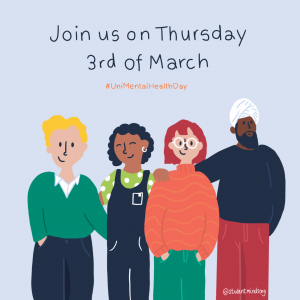
Student minds mental health day poster

The Digital Education Office are hiring!

Following on from the great work of our Student Digital Champions, we are keen to hire some more students to work with us through TB2.

Student Digital Champion 

The UoB Digital Education Office (DEO) are looking for passionate students to work with us to ensure that all students can get the most out of their digital and blended learning experiences at Bristol. As a Student Digital Champion, you will be talking to students, course reps and staff members to hear what is or isn’t working in our online learning environments, and identify good practice in teaching and assessment. You will be working as a team, with the DEO and other Student Digital Champions, to identify and address key challenges the student body are facing when learning in an online, blended or hybrid environment, and then propose, pilot and implement practical solutions. In addition, you’ll be adding your own personal experiences and feedback to the work of the DEO, and helping us shape the work we do in real time. To apply for this role, you need to be a current student at the University of Bristol. You’ll be working an average of 3 hours per week for three months spanning March – to the beginning of June, and we hope to provide a possibility of continuing in the role for the 2022/23 academic year.

Skip to toolbar